

Zoom Workplace review
 Analysis by GetAllApps
I judge a work app not only by what it can do, but by whether I can use it when my attention, hands, hearing, or surroundings are less than ideal. Zoom Workplace is a business app from zoom.com that brings meetings and workplace communication into one place. In my experience, its value is strongest when a team already relies on Zoom and wants fewer separate tools to check; it is less convincing as a universal solution for every access need.
Finding your way through a busy workday
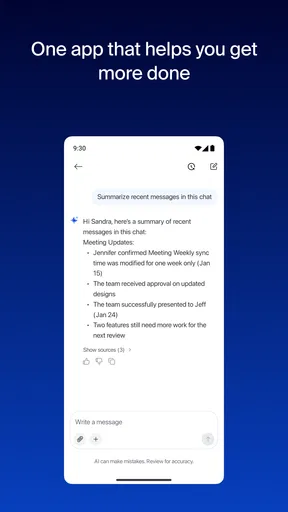
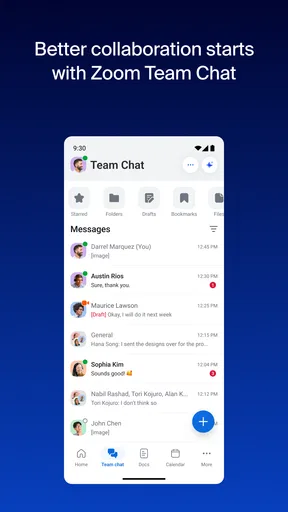
The app’s broad remit is both its main convenience and its first navigation challenge. Meetings, chat, phone, and documents sit within the same workplace environment, so I can move between kinds of work without treating each one as a separate destination. That helps when a conversation turns into a call or a meeting prompts follow-up messages. The trade-off is that a single app covering so much can feel busy, especially if I only need one function.
I find Zoom Workplace easiest to approach when I have a clear task in mind: join a scheduled meeting, reply to a message, or start a call. It is less natural to open it without a purpose and browse around. For someone who gets overwhelmed by crowded interfaces, that distinction matters. A useful habit is to keep the app’s role narrow at first—use it for the meetings or communication your team already handles there, then add other areas only when they solve a real problem.
The app is free to download, with in-app purchases ranging from ten to one hundred sixty-nine dollars and ninety-nine cents per item. That makes trying it relatively straightforward, but a workplace should still check which capabilities its chosen plan and account provide before building a process around them. Zoom Workplace is rated for everyone, and its average rating is 4.1 from around 4.6 million ratings, while users have posted roughly 76,000 written reviews. Those figures suggest broad use, not that the same setup will suit every person or organization.
Readable interactions depend on the task
For ordinary work, the strongest readability advantage is continuity: meeting-related communication and other work tools share an app, so I do not have to remember which standalone product contains each step. That can reduce the mental load of switching. Still, a video meeting is inherently more demanding than reading a short chat. Faces, shared material, spoken discussion, and controls may compete for attention, and the app cannot make every meeting easy to follow simply by gathering the tools together.
I would treat the meeting host’s choices as part of the experience. A clear agenda, spoken descriptions of important shared content, and pauses for questions can do as much for comprehension as the software itself. If I am organizing a call, I try not to assume that everyone can follow a rapidly changing screen or catch a detail mentioned only once. The app works best when the team uses it with that kind of consideration.
Hands, hearing, and sensory load
Zoom Workplace can be useful across different ways of communicating because work does not have to stay in one format: a team can meet, exchange messages, or use phone functions within the same broader workspace. That flexibility is valuable when a live conversation is not the easiest route for someone. It is not, however, a guarantee that every interaction has an equally comfortable alternative. A meeting that depends on spoken discussion, quick reactions, or dense visual material can still create friction.
Motor comfort also depends on the moment. Joining a call or navigating a full work app may require more attention and precise interaction than reading a message at leisure. If someone has limited dexterity, fatigue, or difficulty managing several controls at once, I would recommend testing the exact routine they need—such as joining a recurring meeting and finding its chat—before relying on it for important work. Familiarity can help, but it does not remove every interaction barrier.
For sensory comfort, the most practical adjustment is often choosing the right channel rather than trying to make every meeting work for everyone. A short written exchange may be easier than a call for someone who needs less auditory input; a call may be more accessible than a long text thread for someone who finds reading tiring. Zoom Workplace makes several types of workplace communication available in one app, but the people involved still need to agree on a format that works.
Using it across places and situations
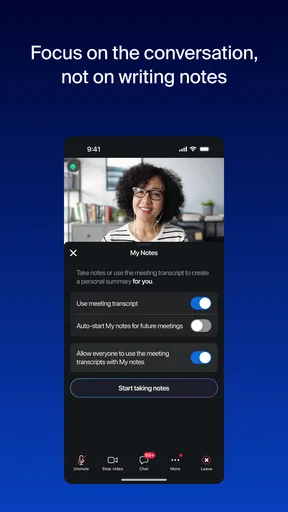
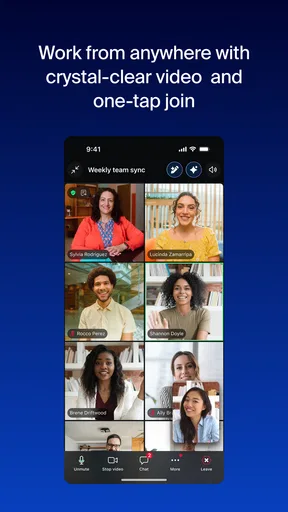
A realistic example is a small team coordinating a project while people are away from their usual desks. One person can join a meeting, another can follow up through chat, and the group can keep the work inside a familiar environment rather than scattering the conversation across unrelated apps. That is where the all-in-one approach feels practical: not because every task is magically easier, but because fewer handoffs can mean fewer chances to lose context.
At the same time, mobile use is not automatically the best choice for every meeting. If I need to study detailed shared material, take careful notes, or keep several work items visible, a larger screen and a quieter setting may be more comfortable. In a noisy place, spoken discussion can be hard to follow; when privacy is limited, joining a work call may be inappropriate. I see the app as useful on the move, but not a substitute for choosing a suitable environment.
Zoom Workplace is available on Android devices running version 9 or later. That gives many people a way to join work from a compatible phone, but an older or unsupported device can be a practical obstacle. Before asking a team member to depend on it, I would check the device they actually use and try the key tasks on it. A desktop or another communication route may be better when the phone experience is cramped, the device is aging, or the work requires sustained attention.
Against the usual alternatives, the key comparison is between a consolidated workspace and a set of specialized apps. If a team already uses separate meeting, messaging, and phone tools effectively, switching everything at once may create more disruption than benefit. If the team is tired of jumping between them, Zoom Workplace’s breadth is a real advantage. I would choose based on the group’s existing habits and accessibility needs, not simply on the appeal of having more functions in one place.
Where the inclusive promise meets real limits
The biggest limitation is that an all-in-one design can concentrate complexity. Someone who only needs to answer a message may not want a broad workplace app; someone who finds video calls tiring may prefer an asynchronous tool that does not make live participation the default. Likewise, teams that need a highly specialized workflow may be better served by a focused alternative. More features are useful only when they reduce effort for the people expected to use them.
I would also avoid assuming that everyone experiences the same meeting in the same way. A participant may be able to hear but not comfortably process fast conversation; another may read chat more easily than track a shared screen. A thoughtful team can make the app more workable by sharing key decisions in writing, leaving room for responses, and not treating immediate verbal participation as the only sign of engagement. Those are practical habits, not settings that can solve every access need.
For organizations, the sensible test is a small, representative trial. Ask people with different devices, work routines, and communication preferences to complete real tasks: join a meeting, locate follow-up discussion, and switch to a message when a call is not suitable. Notice where someone needs help or loses context. This reveals more than a feature checklist, and it helps a team decide whether the convenience of consolidation outweighs the learning and navigation demands.
Who I would recommend it to
I would recommend Zoom Workplace to people whose colleagues already use Zoom and who want meetings and related communication close together. It is especially plausible for teams that move between live discussion and written follow-up throughout the day. The app has a long history, having been released on January 24, 2013, and it has passed one billion installs. That scale makes it familiar to many users, though popularity should not be mistaken for a fit with every team or individual.
I would be more cautious for someone who needs a very simple single-purpose app, regularly works in environments where calls are impractical, or depends on an interaction style the team has not considered. In those cases, a dedicated chat tool, a more focused meeting option, or written communication may be the kinder and more efficient choice. The right answer can differ even among coworkers using the same devices.
My practical advice is to start with one dependable use case rather than moving an entire organization into every part of the app at once. See whether people can join calls comfortably, find the related conversation afterward, and choose another channel when live audio or video is not working for them. Then decide whether expanding its role makes work easier. Because the app includes paid in-app purchases, teams should also make sure the features they expect are covered by the arrangement they intend to use.
A measured inclusive verdict
Zoom Workplace is most inclusive when its flexibility is matched by considerate team habits. Its mix of meeting and communication options can help people choose a workable route through the day, and keeping those activities together can reduce context switching. But a wide feature set can be harder to navigate, live meetings can impose sensory and attention demands, and a phone is not ideal for every task.
For me, it is a useful choice for a team that wants a shared place for workplace communication and is willing to make meetings easier to follow for different people. I would not call it an automatic accessibility solution, nor would I ask someone to use it just because it is popular. Try the specific tasks that matter, invite honest feedback, and keep another communication route available when the app or the situation does not suit someone. That is the difference between merely offering a tool and making it genuinely usable.
Pros and cons
Pros
- Join meetings from shared links without creating an account.
- Use captions to follow spoken conversations more easily.
- Blur your background to add privacy during video calls.
- Share your screen to present documents or other content.
- Use chat to exchange messages during meetings.
Cons
- Some advanced meeting tools require a paid plan.
- Video calls can use substantial mobile data.
- Long meetings can drain your device battery.
- A stable internet connection is important for clear calls.
- Meeting hosts may restrict features such as screen sharing.


